How the display works
This page explains what AWTRIX shows, where things sit on the display, and which text moves by itself. The pages about text, drawings, layouts and scripts build on it.
The display
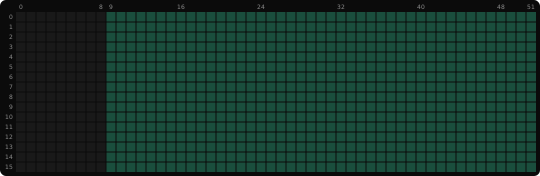
The display is a grid of pixels, 52 wide and 16 tall.
xcounts the columns from the left, starting at0.ycounts the rows from the top, starting at0. A largeryis lower.- Anything outside the display is cut off. That is never an error.
This script lights the four corners:
class Corners
  def draw()
    pixel(0, 0, 0xFF0000)
    pixel(width() - 1, 0, 0x00FF00)
    pixel(0, height() - 1, 0x0088FF)
    pixel(width() - 1, height() - 1, 0xFFFF00)
  end
end

return Corners()
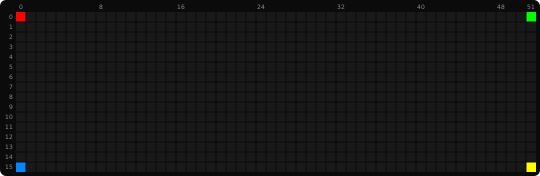
Red is (0, 0). Yellow is (51, 15).
Apps you send are drawn at double size. A pushed app or a notification uses a grid of
26 × 8, and each of its pixels lights a square of 2 × 2. Its bottom-right corner is (25, 7).
So an app made for an 8-row clock fills the display. Scripts and layouts use all 52 × 16
pixels.
curl -X PUT http://<awtrix-ip>/api/v1/apps/pushed/temperature \
  -H 'Content-Type: application/json' \
  -d '{"text":"21°C"}'
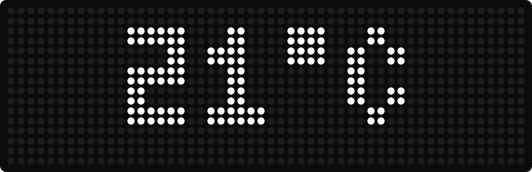
The setting enlargeApps is on by default. When it is
off, or when its icon is bigger than 26 × 8, a pushed app keeps the full 52 × 16 grid.
Apps take turns
AWTRIX shows one app at a time. The apps take turns in the rotation: each one stays for a while, 7 seconds unless you change it, then the next one comes.
- Built-in apps come with AWTRIX, for example the time and the date.
- Pushed apps are sent to AWTRIX by something else, for example Home Assistant. See Pushed apps.
- Scripts are small programs that run on AWTRIX itself. See the Scripting guide.
A notification is shown once, on top of the rotation. When it is over, the rotation goes on.
An app whose text moves can keep its turn until the text was read: with
repeat in a pushed app or a notification,
and with scroll_text() and {"repeat": 1} in a
script. Without it, the next app comes after the usual time, even in the middle of the text.
Ways to show something
There are four ways to put your own content on the display. They differ in who decides where things go, and in what happens to text that is too long.
| Text and icon | Drawing commands | Layout | Script | |
|---|---|---|---|---|
| What it is | the text and icon keys of a pushed app or a notification |
the draw key of a pushed app or a notification |
the layout key of a pushed app or a notification, or layout in a script |
a small program that runs on AWTRIX |
| Who places things | AWTRIX: the icon on the left, the text in the rest | you: a position for every shape | you give each part a box, AWTRIX places the content inside | you: a position for every call |
| Text that is too long | moves through the display | is cut off | moves through its box | text(): is cut off. scroll_text(): moves |
What y of a text means |
there is none, AWTRIX picks the rows | 1 puts the letters on the rows of the app's own text |
there is none, the text sits in its box | the baseline, the line the letters stand on |
| Good for | a value from your smart home | a frame, a symbol or a small chart of your own | several values, each with its own font and movement | anything with its own logic |
A pushed app can have text and drawing commands together, a layout can hold a drawing, and a script can draw a layout.
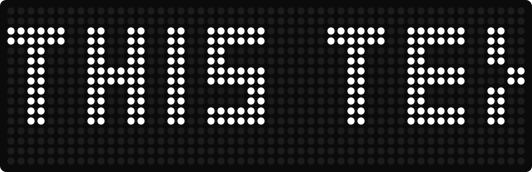
The same text, too long for the display, in each way:
curl -X PUT http://<awtrix-ip>/api/v1/apps/pushed/news \
  -H 'Content-Type: application/json' \
  -d '{"text":"THIS TEXT IS TOO LONG"}'

It moves through the display by itself.
curl -X PUT http://<awtrix-ip>/api/v1/apps/pushed/news \
  -H 'Content-Type: application/json' \
  -d '{"draw":[["text",0,1,"THIS TEXT IS TOO LONG"]]}'
It stands still. What does not fit is cut off.
curl -X PUT http://<awtrix-ip>/api/v1/apps/pushed/news \
  -H 'Content-Type: application/json' \
  -d '{"layout":{"version":1,"regions":[{"id":"news","box":[0,0,52,16],"text":"THIS TEXT IS TOO LONG"}]}}'

It moves through its box by itself.
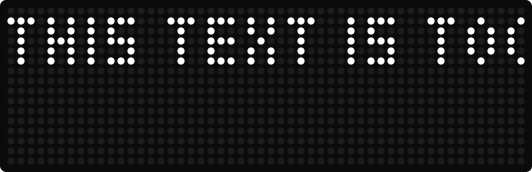
It stands still. What does not fit is cut off.

Text
Where text sits
- Text and icon: AWTRIX places the text, in the middle of the free space or at the side
textAlignnames, always on the same rows. You cannot move it up or down. - Drawing commands:
y = 1puts the letters on the rows of the app's own text, in every font. A largerymoves them down. In the default fontsmall,yis the top row of the letters. - Layout: the text sits in its box, in the middle unless
alignandvalignsay otherwise. - Script:
yis the baseline, the line the letters stand on. The table below shows which rows each font fills.
In a script, y names the baseline, here row 6:
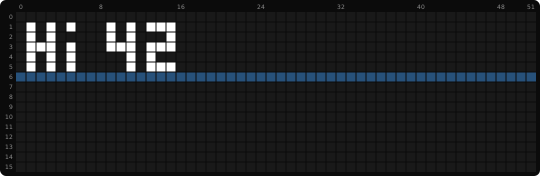
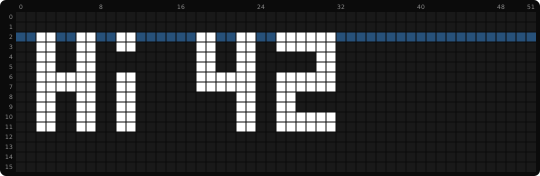
In the default font, a drawing command names the top row instead. In a pushed app it counts the
rows of the 26 × 8 grid, so y = 1 puts the top of the letters on rows 2 and 3 of the display:
curl -X PUT http://<awtrix-ip>/api/v1/apps/pushed/hi \
  -H 'Content-Type: application/json' \
  -d '{"draw":[["text",1,1,"Hi 42"]]}'
Which rows a font fills. The y in this table puts a script's line where apps put theirs. A
smaller y moves the line up.
| Font | y in a script |
Capitals on rows |
|---|---|---|
small |
6 |
1 to 5 |
large |
6 |
0 to 6 |
matrix-light6 |
7 |
1 to 5 |
matrix-chunky8x6 |
8 |
0 to 6 |
matrix-chunky6 |
7 |
1 to 5 |
matrix-chunky6x, matrix-light6x |
7 |
1 to 6 |
matrix-chunky8, matrix-light8, matrix-light8x6 |
8 |
0 to 6 |
matrix-chunky8x, matrix-light8x |
8 |
0 to 7 |
Letters such as g and y reach lower than the capitals.
A second line goes 8 rows lower, for example y = 14 with small.
When text moves
- Text from the
textkey and from a layout moves only when it does not fit. Short text stands still. Scrolling, or not has the options. - Drawing commands and a script's
text()never move. What does not fit is cut off at the edge. scroll_text()stands still, in the middle, when the text fits, and moves when it does not. A script can move two texts at a time, each in its own place: anothery, or other columns.
A frame is one still picture. A script's draw() paints a new frame about 40 times a second.
To move something without scroll_text(), draw it a little further along in each frame:
class Go
  var start

  def init()
    self.start = 0
  end

  def on_show()
    self.start = now_ms()
  end

  def draw()
    var x = width() - (now_ms() - self.start) / 40 % (width() + 12)
    text(x, 6, "GO", 0x00FF00)
  end
end

return Go()

on_show() runs each time the app appears, so now_ms() - self.start counts the milliseconds
since then, and / 40 moves the word one column every 40 ms. Berry divides whole numbers without
a remainder: multiply before you divide, or a small result becomes 0.
Areas side by side
Icon and text
An icon takes the left 8 columns and a gap of 1. The text uses the rest. Charts start after the icon too, and a progress bar starts right at its edge. Drawing commands ignore the icon: their positions count from the left edge of the display.
At double size, the icon covers the left 16 columns and the gap 2, so the text starts at column 18:
curl -X PUT http://<awtrix-ip>/api/v1/apps/pushed/weather \
  -H 'Content-Type: application/json' \
  -d '{"icon":"sun","text":"21°C"}'
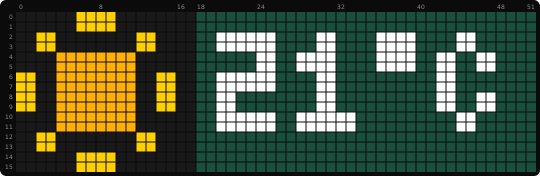
sun is an icon from the AWTRIX Hub.
Boxes in a layout
A layout splits the display into boxes. A box is [x, y, width, height] in pixels of the full
52 × 16 display, and shows one thing:
- The content sits in its box by
alignandvalign, in the middle unless you say otherwise. - Text that does not fit moves through its box.
- A drawing in a box counts its positions from the top-left corner of the box.
curl -X PUT http://<awtrix-ip>/api/v1/apps/pushed/outside \
  -H 'Content-Type: application/json' \
  -d '{"layout":{"version":1,"regions":[{"id":"title","box":[0,0,52,8],"text":"OUTSIDE","font":"matrix-light6"},{"id":"value","box":[0,8,52,8],"text":"21.5°C and sunny all day","color":"#00AAFF"}]}}'
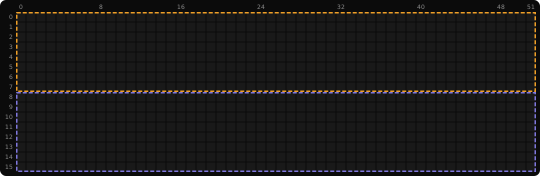
More in Layouts.
Moving text next to something else
In a script, scroll_text(x, y, w, text, color) moves the text only through the columns x to
x + w - 1. Draw your icon or symbol beside them: the moving text never touches it.
class Room
  def draw()
    circle_fill(3, 3, 3, 0xFFC000)
    scroll_text(9, 6, width() - 9, "Living room 21.5°C", 0x00AAFF)
  end
end

return Room()
What is drawn on top
- Pushed app and notification: first the background or the effect, then drawing commands,
progress bar, bar chart and line chart, then the icon. The text lies under charts and drawings
unless
textInFrontis on. A weather overlay covers everything. Layering has the details. - Script: each call paints over what is already there. Call
effect()first andoverlay()last.
Related
- Text & colors: fonts, colors and scrolling
- Charts & drawing: every drawing command
- Layouts: boxes for text, icons and charts
- Scripting: Drawing: every drawing call in a script
- Icons: getting icons onto the clock