Pushed apps
This page shows you how to send your own apps to the clock, keep them up to date and arrange the rotation they take turns in.
New here?
How the display works shows where things sit on the display and which text moves by itself.
What you get
Replace <awtrix-ip> with the IP address of your clock and run:
curl -X PUT http://<awtrix-ip>/api/v1/apps/pushed/weather \
  -H "Content-Type: application/json" \
  -d '{"text":"21.5C","icon":"sun","textColor":"#00AAFF"}'

This creates an app called weather: the sun on the left, the temperature in blue next to it.
sun is an icon from the AWTRIX Hub.
The app joins the end of the rotation. To see it at once, press Show in its row on the Apps tab of the web UI, or send:
curl -X PUT http://<awtrix-ip>/api/v1/apps/active \
  -H "Content-Type: application/json" -d '{"name":"weather"}'
How it behaves
A pushed app shows what you send it, for example a stock price or the state of your washing
machine. AWTRIX never fetches anything itself, so the sender keeps the value up to date. The app
takes its turn in the rotation until you delete it, its lifetime runs
out or the clock restarts. AWTRIX places the text and the icon for you, and the text moves only
when it does not fit. Text you draw with draw never moves. See
When text moves.
Your app is drawn at double size: each of its pixels lights a square of 2 × 2. So positions
in draw count on a grid of 26 × 8, and the bottom-right corner is ["pixel",25,7]. A larger
position lies outside the grid and shows nothing. With
enlargeApps off, or with an icon bigger than 26 × 8, the
app uses all 52 × 16 pixels. See The display.
Send it from Home Assistant
Let Home Assistant send the value whenever it changes. Add a REST command to your
configuration.yaml:
rest_command:
  awtrix_weather:
    url: "http://<awtrix-ip>/api/v1/apps/pushed/weather"
    method: PUT
    content_type: "application/json"
    payload: '{"text":"{{ states(''sensor.outdoor_temperature'') }}C","icon":"sun"}'
Call rest_command.awtrix_weather from an automation whenever the sensor changes. Replace
sensor.outdoor_temperature with your own sensor.
Update or remove an app
Send the app again to show a new value. A PUT to a name that already exists replaces that app
completely:
curl -X PUT http://<awtrix-ip>/api/v1/apps/pushed/weather \
  -H "Content-Type: application/json" \
  -d '{"text":"18.0C","icon":"sun"}'

When the app is shown, you see the change at once. If the text stays the same, the scrolling does not restart, and an unchanged animated icon keeps playing. So an app that you update every few seconds does not jump back to the start each time.
To remove the app, open its ⋯ menu on the Apps tab of the web UI and press Delete twice. Over the API:
Over MQTT, an empty message to <prefix>/cmd/apps/pushed/weather removes it
(MQTT command topics).
A name may use A–Z, a–z, 0–9, _ and -, and is 1 to 32 characters long. Scripts follow the
same rule.
Draw your own shapes
The draw key adds pixels, lines, rectangles, circles, text and images at positions you choose.
This app draws a blue frame around its text:
curl -X PUT http://<awtrix-ip>/api/v1/apps/pushed/frame \
  -H "Content-Type: application/json" \
  -d '{"text":"21°C","draw":[["rect",0,0,26,8,"#00AAFF"]]}'
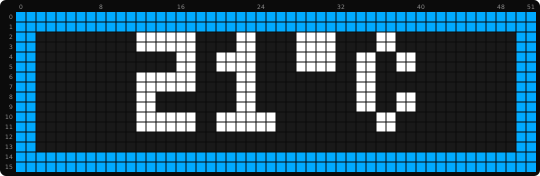
["rect",0,0,26,8] starts at column 0 and row 0 and is 26 wide and 8 tall. At double size, that
is the whole display.
Positions count from the top-left corner of the display, also when the app has an icon. The
commands are pixel, pixels, line, rect, rectFill, circle, circleFill, text and
bitmap. What each one takes: Draw commands. More
examples: Charts & drawing.
Keep an app until its text has been read
Long text moves through the display, but the rotation does not wait for it. When the time is up,
the next app comes, even in the middle of the text. Add repeat to wait for whole passes:
curl -X PUT http://<awtrix-ip>/api/v1/apps/pushed/news \
  -H "Content-Type: application/json" \
  -d '{"text":"A rather long headline that will not fit on the display","repeat":1}'

repeat stands at the top level of the JSON, next to text. It does not go inside scroll.
The app then stays exactly as long as the text needs. If it has been read before the normal time is
up, the next app comes right away. Add durationMs to keep it longer, or a higher repeat for more
passes.
Let an app run out
lifetimeMs sets how long an app lives after you sent it. lifetimeExpiry sets what happens then:
"remove"(default): the app is deleted."mark": the app stays and gets a thin dark-red frame, so you can see its value is old.
# Delete the app 5 minutes after it was sent
curl -X PUT http://<awtrix-ip>/api/v1/apps/pushed/doorbell \
  -H "Content-Type: application/json" \
  -d '{"text":"DING","lifetimeMs":300000,"lifetimeExpiry":"remove"}'
mark works as a warning light. Push the app every minute with lifetimeMs: 180000 and
lifetimeExpiry: "mark". If your automation stops, the red frame appears after three minutes,
instead of an old number looking current:
curl -X PUT http://<awtrix-ip>/api/v1/apps/pushed/power \
  -H "Content-Type: application/json" \
  -d '{"text":"1.2kW","lifetimeMs":180000,"lifetimeExpiry":"mark"}'
Send several apps in one request
Send an array of objects, and each object becomes its own app. The apps are named after the URL
name plus a number: stocks0, stocks1, stocks2:
curl -X PUT http://<awtrix-ip>/api/v1/apps/pushed/stocks \
  -H "Content-Type: application/json" \
  -d '[{"text":"AAPL 189"},{"text":"MSFT 412"},{"text":"NVDA 903"}]'
These three names appear in the rotation and in GET /api/v1/apps. There is no app called stocks.
Bring an app back after a restart
A pushed app is kept in memory, not saved. It stays until one of these happens:
- you replace or delete it,
- its
lifetimeMsruns out, - the clock restarts: after a power cut, a firmware update or
POST /api/v1/device/reboot.
After a restart, the sender pushes the app again and it is back, with the current value. To make this automatic, push on a schedule, or react to the MQTT availability topic (MQTT).
The order of the rotation is saved, so a pushed app that comes back returns to its place. See The order is remembered across reboots.
Some content should come back by itself, for example a fixed label or a drawn logo. Write a script for it. Scripts are stored on the clock.
See which apps take turns
Every app in the rotation (built-in, pushed or script) has a name. The rotation is an ordered list of these names, and the clock shows them one after the other, again and again.
Until you arrange the rotation yourself, it runs in this order:
- the built-in apps: Time, Status,
- your pushed apps, in the order they first arrived,
- your scripts, in the order you installed them.
Updating a pushed app keeps its place. Deleting it and sending it again puts it at the end. After a restart, pushed apps come back in the order your automation sends them. So if the order matters, arrange the rotation once.
In the web UI, the Apps tab lists the rotation under On the display, in this order. Over the API:
[
  {"name":"Time","enabled":true,"inLoop":true,"slot":0,"present":true,"origin":"builtin","config":true},
  {"name":"weather","enabled":true,"inLoop":true,"slot":1,"present":true,"origin":"pushed","icon":"sun"},
  {"name":"co2","enabled":true,"inLoop":false,"slot":2,"present":false,"origin":null},
  {"name":"Status","enabled":false,"inLoop":false,"slot":null,"present":true,"origin":"builtin","config":false}
]
What the fields mean:
slot: the position in the rotation, starting at 0. Apps you have not arranged come last, withslot: null.enabled: whether the app is switched on.inLoop: whether the app is shown in the rotation. For most apps this is the same asenabled.present: whether the app exists right now.co2above is switched on and keeps its place, but nothing has sent it yet: typical for a pushed app after a restart.origin:builtin,pushedorscript.nullwhile the app is not there.
Built-in apps
These apps come with the clock. You arrange them and switch them off like any other app.
| App | Shows |
|---|---|
Time |
a clock with five faces that also shows the date |
Status |
how the clock is doing. See The Status app |
Date, Temperature, Humidity and Battery in an order call are ignored.
Example: take the Status app out of the rotation:
curl -X PUT http://<awtrix-ip>/api/v1/apps/Status/enabled \
  -H "Content-Type: application/json" -d 'false'
The change is immediate and is kept after a restart.
The clock's faces and colors are settings: Settings – Clock app.
The weekday bar is not an app
The row of seven dashes under the clock is part of the clock. It is not in the rotation and cannot be moved. One setting controls it:
curl -X PATCH http://<awtrix-ip>/api/v1/settings \
  -H "Content-Type: application/json" -d '{"weekdayBar":{"show":false}}'
The same object sets the first day of the week (startOnMonday), the weekend days (weekendDays)
and the colors: Settings – Weekday bar.
The rotation keeps turning behind a notification
A notification covers the rotation, but does not stop it. The rotation keeps moving in the background. When the notification ends, you usually see a different app than before. See Your first notification.
Arrange the rotation
Put the apps in your order, switch some off, or show one more often than the rest.
In the web UI, on the Apps tab:
- Drag an app by its ⠿ grip to its place.
- Use the switch in its row to switch it off or on.
- To show an app twice per round, pick Duplicate in its ⋯ menu.
Every change is saved at once. See The web UI – Apps.
Over the API, one call arranges the rotation. order lists the apps in the order they are shown:
curl -X PUT http://<awtrix-ip>/api/v1/apps/order \
  -H "Content-Type: application/json" \
  -d '{"order":["Time","weather","Time","Status"],"disabled":[]}'
The result: clock → weather → clock again → status → back to the start.
The rules:
disabledis the complete list of switched-off apps. Every app it does not name runs. For example{"order":["Time","weather"],"disabled":["Status"]}. A switched-off app stays installed. It still appears inGET /api/v1/apps, withenabled: false.disabledis always required.orderis optional. Withoutorder, the order stays as it is. Anorderwithoutdisabledis refused.- Switch a single app with its own call.
PUT /api/v1/apps/<name>/enabledwithfalseortrueleaves every other app as it is. A switched-off app keeps its place and returns to it. - Show an app more often by naming it twice. Each copy gets its own
slot. This gives the app more time on the display than the rest. - You can name apps that are not there yet. This is not an error: it reserves a place for an app that arrives later.
- New apps join by themselves. An app that arrives after the order call is switched on, unless
disablednames it. Iforderalready named it, it takes that place. Otherwise it joins after the arranged apps. - Scripts without a display (they only run in the background) can be named in
orderto keep them running. They never take a turn.
Over MQTT, publish the same body to cmd/apps/order, and true or false to
cmd/apps/<name>/enabled.
The order is remembered across reboots
The order is stored automatically and restored after a restart. You set it once. There is nothing else to do.
What is saved is two lists of names: the order, and the switched-off apps. An app that is not there yet waits. When the app arrives, it takes its saved place. This works for scripts loaded at startup and for pushed apps sent later by your automation. This is how a pushed app keeps its position, even though the app itself is lost at every restart.
Switched-off apps stay switched off, pushed apps included. When your automation sends the app again, it stays off.
While an app is missing, GET /api/v1/apps still lists it with present: false. You can move it and
switch it on or off before it comes back.
An app that you have never named in an order call has no reserved place. After a restart it is gone until the next push, and then it joins at the end of the rotation. Name it in one order call and it keeps its place from then on.
To go back to the default order, list the built-in apps with nothing switched off:
curl -X PUT http://<awtrix-ip>/api/v1/apps/order \
  -H "Content-Type: application/json" \
  -d '{"order":["Time","Status"],"disabled":[]}'
Change how long each app stays
Each app stays for 7 seconds, then the next one comes. In the web UI, change Time per app under Display → App rotation and press Save.
Over the API, four settings control the rotation:
| Setting | Does | Default |
|---|---|---|
autoTransition |
false stops the rotation. It then moves only when you tell it to |
true |
appDurationMs |
how long each app is shown | 7000 ms |
transitionDurationMs |
how long the animation between two apps takes | 1000 ms |
transitionEffect |
the animation between two apps | Rain |
curl -X PATCH http://<awtrix-ip>/api/v1/settings \
  -H "Content-Type: application/json" \
  -d '{"appDurationMs":4000,"transitionEffect":"Ripple","transitionDurationMs":800}'
Upper and lower case do not matter in effect names. All animations: Visual reference – Transitions.
A pushed app can set its own time with durationMs.
Switch apps by hand
Jump to the next app, the previous one or a certain one. In the web UI, the ◀ and ▶ buttons under the live picture on the Dashboard show the previous and the next app. Over the API:
# Next / previous app, with the animation
curl -X POST http://<awtrix-ip>/api/v1/apps/next
curl -X POST http://<awtrix-ip>/api/v1/apps/previous

# Go to an app, with the animation
curl -X PUT http://<awtrix-ip>/api/v1/apps/active \
  -H "Content-Type: application/json" -d '{"name":"weather"}'

# Go to an app at once, without animation; its display time starts again
curl -X PUT http://<awtrix-ip>/api/v1/apps/active \
  -H "Content-Type: application/json" -d '{"name":"weather","fast":true}'
previous goes back one app. After that the rotation moves forward again. apps/active works only
for an app in the rotation: a switched-off app, or one without a display, answers
404 app not found.
Over MQTT: cmd/apps/next, cmd/apps/previous and cmd/apps/switch. See
MQTT command topics.
Switch apps with the buttons
On the clock, left shows the previous app and right the next one. One press on select dismisses the notification shown. Everything the buttons do: The buttons. The clock has no settings menu: all settings are in the web UI or the API.
Lock the buttons
For public places, lock the buttons. In the web UI, switch on Block buttons under
Display → App rotation and press Save. Over the API, set blockNavigation (default
false):
curl -X PATCH http://<awtrix-ip>/api/v1/settings \
  -H "Content-Type: application/json" -d '{"blockNavigation":true}'
This blocks left, right, the double press and the menu,
and everything the knob does on the clock. One press on select still dismisses a notification.
HTTP and MQTT keep working: apps/next, apps/previous and apps/active still switch apps.
Good to know
- Send
Content-Type: application/json. Without it,curl -dsends another type, and the request is refused with415. Your app stays as it was. - An empty body does not delete.
{}is refused with422. UseDELETEto remove an app. repeatinsidescrollis refused with422and"field":"scroll.repeat". Put it next totext.- The clock holds up to 50 pushed apps. A new one past that is refused with
507 insufficientStorage, so delete one first. Updating an app that exists always works, and scripts do not count. - A built-in app cannot be deleted.
DELETEanswers200, but the app stays: switch it off in the rotation instead.
Details
- Every key a pushed app takes, with types, ranges and defaults: App & notification payload. Pushed apps and notifications take the same keys.
repeat,lifetimeMsandlifetimeExpiryand Array payloads- Creating, replacing, deleting and names: HTTP API – Apps
- Every field of the list: HTTP API – GET /api/v1/apps
- All rules of the order call: HTTP API – PUT /api/v1/apps/order
- Display time and transitions: Settings – App rotation
- How many apps fit: Limits
- The same commands over MQTT: MQTT command topics
- Colors, effects, palettes, overlays and transitions: Visual reference
Related
- Your first notification: a message on top of the rotation
- Text & colors, Charts & drawing, Layouts and Effects & overlays: what an app can show
- Scripting guide: apps that work out their own content on the clock
- The web UI – Apps: the rotation in the web UI