Palette editor
The Palettes tab in the web UI lets you make your own palettes and change the eight built-in ones.
What you get
Every palette, built in or your own, works by its name in any app. This pushed app paints the
Plasma effect with the built-in Ocean:
curl -X PUT http://<awtrix-ip>/api/v1/apps/pushed/calm \
  -H 'Content-Type: application/json' \
  -d '{"effect":"Plasma","palette":"Ocean"}'
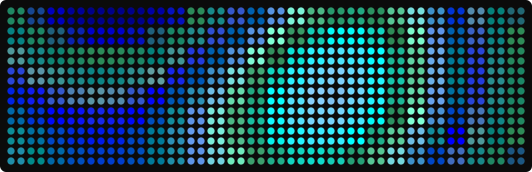
A palette you save as sunset works the same way, with "palette":"sunset".
How it behaves
A palette is a set of colors AWTRIX blends through. Effects paint with it, and so can text, charts and the progress bar, see Effects & overlays and Text & colors. You set only the colors you care about, the stops, and AWTRIX fills in everything between them. Two stops make a gradient from one color to the other, and sixteen stops are sixteen colors exactly as you set them. The color bars in the list and in the editor are drawn the same way AWTRIX draws them, so what you see there is what the display shows. Apps that already use a palette keep the colors they had when you sent them: push them again after you change the palette.
Make a palette
The tab shows a list of every palette AWTRIX knows on the left and one editor on the right.
- Open the Palettes tab and press New palette.
- Edit the color bar. Every stop is a handle on it:
- Click the bar to add a stop there, in the color already at that point. Or press Add stop to add one in the widest gap.
- Drag a handle to move it along the bar. With a handle selected, the left and right arrow keys move it by one percent, or by ten with Shift held.
- The row below edits the selected handle: a color picker with the hex value on it, the position field marked at, and ✕ to remove the stop.
- Press Try on the clock at any time, also before you save. The display shows the
Plasmaeffect in your colors for four seconds. - Type a name and press Save.
New stops are spread evenly until you move one. After that each stop keeps its position, and Spread evenly spaces them out again.
The position decides how much of the bar each color gets. The built-in Heat spends most of its
length in reds because its bright colors sit near the end. Two stops at the same position make a
hard edge with no blend. That is how you make stripes.
Names may use letters, digits, - and _, up to 24 characters. You can use the palette anywhere a
palette name goes, for example {"effect":"Plasma","palette":"sunset"}.
Change a palette you made
- Pick it in the list.
- Change it.
- Press Save.
If you change the name before saving, the button turns into Save as new: the original stays and a copy is saved under the new name.
Delete a palette
- Press the bin on its row.
- Press it again to confirm.
Apps already showing that palette keep their colors.
Change a built-in palette
- Pick one of the eight built-in palettes.
- Change the colors.
- Press Replace built-in. From then on, everything that asks for that name gets your version, and the row is marked edited.
To get the original back, press the bin on a row marked edited. Its label is Restore the built-in. A built-in can never be lost this way.
To make your own palette based on a built-in instead, press Duplicate on its row. It copies the colors under a free name. Rename it and save.
Good to know
- Blend, above the color bar, changes only the preview: a smooth gradient, or the 16 hard bands
of
"paletteBlend": false. Each app setspaletteBlenditself. - After you delete a palette, the next push or update that names it fails with
422 validationFailed. Point those apps at a palette that still exists. - A few effects use fixed colors and ignore palettes. The effects table marks them.
- A palette the list marks Unreadable has a broken file, and AWTRIX does not load it. Delete it with the bin and make it again.
Details
- Visual reference → Palettes: the eight built-in palettes
- Visual reference → Custom palettes: the file format
of a palette in
/PALETTES, for writing one by hand, and how a file named after a built-in replaces it - Payload → Palette:
palette,paletteBlend,paletteSpanandpaletteSpeed - HTTP reference → Backup restore: your palettes are part of every backup
Related
- Effects & overlays: the effects a palette recolors
- Text & colors: painting text with a palette