Text & colors
This page shows how to style the text of a pushed app or a notification: its color, case and font, and how it moves when it is too long.
New here?
How the display works shows where things sit on the display and which text moves by itself.
What you get
Replace <awtrix-ip> with the IP address of your clock and run:
curl -X POST http://<awtrix-ip>/api/v1/notifications \
  -H 'Content-Type: application/json' \
  -d '{"text":"HELLO","textColor":"#FF8800"}'

An orange HELLO appears in the middle of the display.
Every key on this page goes into that same JSON object, and works the same way in a pushed app:
curl -X PUT http://<awtrix-ip>/api/v1/apps/pushed/greeting \
  -H 'Content-Type: application/json' \
  -d '{"text":"HELLO","textColor":"#FF8800"}'
Always send the Content-Type header, as above. Without it, curl -d marks the body as a form,
and AWTRIX refuses a PUT with that (Content-Type).
How it behaves
AWTRIX places the text for you: centered in the free space, to the right of the icon if there is
one, and always on the same rows. You choose its color, case, font and movement, but not its row:
for a place of your own, use drawing commands, a
layout or a script. The text moves only when it
does not fit, and short text stands still (When text moves).
Pushed apps and notifications are drawn at double size, so about six characters fit.
Without repeat, an app or a notification ends after its usual time, even in the middle of the
text. repeat goes at the top level of the JSON object, next to text, not inside scroll.
Color the text
textColor gives the whole text one color:
curl -X POST http://<awtrix-ip>/api/v1/notifications \
  -H 'Content-Type: application/json' \
  -d '{"text":"ORANGE","textColor":"#FF8800"}'

Each of these values gives the same orange:
| Form | Value |
|---|---|
hex, the # is optional |
"#FF8800" |
| short hex, each digit doubled | "F80" |
| red, green and blue, each 0 to 255 | [255,136,0] |
| hue 0 to 360, saturation and value 0 to 100 | ["HSV",32,100,100] |
| one number | 16746496 |
Without textColor, the text uses the textColor setting, which is white unless you change it.
Give parts of the text their own color
Send text as a list of pieces instead of one string. Each piece is
{"text": "...", "color": color}, and the pieces are shown left to right:
curl -X PUT http://<awtrix-ip>/api/v1/apps/pushed/cpu \
  -H 'Content-Type: application/json' \
  -d '{"text":[{"text":"CPU ","color":"#888888"},{"text":"87","color":"#FF0000"},{"text":"%","color":"#888888"}]}'

This shows a gray label with a red number. A piece without color is white, and the top-level
textColor is ignored unless it is "palette". Blinking, fading and the case apply to all pieces
alike.
Paint the text from a palette
A palette is a set of colors. Set textColor to "palette", and the text takes its colors from
the palette instead of one color. Give the palette as a list of colors:
curl -X PUT http://<awtrix-ip>/api/v1/apps/pushed/hot \
  -H 'Content-Type: application/json' \
  -d '{"text":"OVERHEAT","palette":["#FFFF00","#FF0000"],"textColor":"palette"}'

The text is yellow on the left and red on the right, with an even change in between. Two colors make a gradient, and more colors make a scale.
One of the eight built-in palettes, or a palette you made in the Palette editor, works by its name:
curl -X PUT http://<awtrix-ip>/api/v1/apps/pushed/warm \
  -H 'Content-Type: application/json' \
  -d '{"text":"23.4C","palette":"Heat","textColor":"palette"}'

Heat runs from dark red on the left to white on the right.
Repeat and move the colors
Two more keys make the colors repeat and move:
curl -X POST http://<awtrix-ip>/api/v1/notifications \
  -H 'Content-Type: application/json' \
  -d '{"text":"PARTY TIME","palette":"Rainbow","textColor":"palette","paletteSpan":24,"paletteSpeed":1}'

paletteSpanis how many pixels one run through the palette takes.0, the default, stretches the palette once over the whole text, which suits a gradient. A number repeats the palette every that many pixels. That suits long moving text, where a stretched palette changes very little from letter to letter.paletteSpeedis how many palette runs move past per second.0stands still.
Make the text blink or fade
textBlinkMs switches the text on and off. The number is one full on-and-off cycle in
milliseconds:
curl -X POST http://<awtrix-ip>/api/v1/notifications \
  -H 'Content-Type: application/json' \
  -d '{"text":"ALERT","textColor":"#FF0000","textBlinkMs":600}'

textFadeMs makes the color brighter and darker smoothly, here in a cycle of 2 seconds:
curl -X POST http://<awtrix-ip>/api/v1/notifications \
  -H 'Content-Type: application/json' \
  -d '{"text":"BREATHE","textColor":"#00AAFF","textFadeMs":2000}'

0, the default, switches either one off.
Choose how the text moves
Text that does not fit moves through the display by itself.
About six characters fit, about four next to an icon. With
enlargeApps off, about thirteen fit, fewer next to an
icon.
Long text waits one second at the start, then moves to the left. When it has left the display, it
starts again from the beginning.
The key scroll changes how the text moves. This headline moves at half speed, as a continuous
ticker:
curl -X PUT http://<awtrix-ip>/api/v1/apps/pushed/news \
  -H 'Content-Type: application/json' \
  -d '{"text":"A LONG HEADLINE THAT WILL NOT FIT","scroll":{"mode":"loop","speed":50}}'

| Field | Values | Default | What it does |
|---|---|---|---|
mode |
static · wrap · loop · bounce |
wrap |
how the text moves |
direction |
left · right |
left |
which way it moves |
entry |
inline · offscreen |
inline |
start on the display, or slide in from outside |
whenFits |
static · scroll |
static |
whether short text moves too |
speed |
0 and up, percent |
100 |
percent of the base speed of 21 pixels per second. 0 stops it. Above about 200 the text starts to blur |
gap |
0 and up, pixels |
8 |
loop only: the space between repeats |
holdMs |
0 and up, ms |
1000 |
pause before the text starts, and at each bounce turn |
Send only the fields you want to change. The others keep the clock's scroll settings, so
{"scroll":{"mode":"bounce"}} bounces at your usual speed. To change only the mode, a plain word
is enough: {"scroll":"bounce"}.
The four modes
wrap, the default: the text leaves at one side, jumps back to the start and waits again.loop: a continuous ticker. The next copy follows right behind the last one, so the display is never empty.gapsets the space between copies.bounce: the text moves until its end reaches the other edge, then moves back. It pauses at both ends. SetholdMsto0to turn around without a pause.static: no movement. What does not fit is cut off at the right edge.
With static, a long headline stands still and shows only its beginning:
curl -X PUT http://<awtrix-ip>/api/v1/apps/pushed/news \
  -H 'Content-Type: application/json' \
  -d '{"text":"A LONG HEADLINE THAT WILL NOT FIT","scroll":"static"}'

Direction, entry and short text
direction: "right" mirrors everything: the text starts at the right edge and leaves on the left.
All modes work this way.
entry: "offscreen" starts the text outside the display, without the first pause. The text slides
in onto an empty display:
curl -X PUT http://<awtrix-ip>/api/v1/apps/pushed/news \
  -H 'Content-Type: application/json' \
  -d '{"text":"HEADLINE","scroll":{"entry":"offscreen","whenFits":"scroll"}}'

whenFits: "scroll" makes the text move even when it fits on the display. Without it, text that
fits stands still.
Keep an app until its text was read
An app stays for its usual time, and long text is shown only as far as it gets in that time.
repeat keeps the app until the text has run through: once for wrap, there and back for
bounce. It goes at the top level, next to text:
curl -X PUT http://<awtrix-ip>/api/v1/apps/pushed/news \
  -H 'Content-Type: application/json' \
  -d '{"text":"A LONG HEADLINE THAT WILL NOT FIT","repeat":1}'

The app then stays exactly as long as the text needs. If the text is read in 4 seconds, the app
ends after 4 seconds. Use repeat: 2 to show it twice, and add durationMs to keep it longer.
This works the same way in a notification.
Put still text on the left or right
Still text stands in the middle. textAlign puts it on the left (start) or on the right
(end) instead:
curl -X PUT http://<awtrix-ip>/api/v1/apps/pushed/label \
  -H 'Content-Type: application/json' \
  -d '{"text":"21.5°C","textAlign":"end"}'
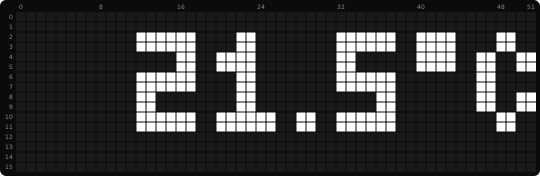
end keeps the text at the right edge. Next to an icon, the text is aligned in the space
right of the icon. Moving text ignores textAlign.
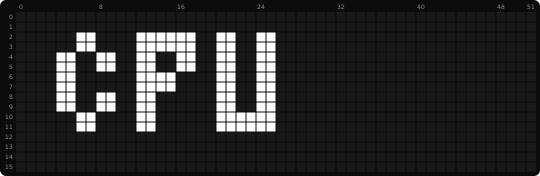
textOffsetX moves the text left or right by a number of pixels, still or moving:
curl -X PUT http://<awtrix-ip>/api/v1/apps/pushed/label \
  -H 'Content-Type: application/json' \
  -d '{"text":"CPU","textAlign":"start","textOffsetX":2}'
Pick a font
The font key picks the font. Without it, the text uses small:
curl -X PUT http://<awtrix-ip>/api/v1/apps/pushed/weather \
  -H 'Content-Type: application/json' \
  -d '{"text":"21°C","font":"matrix-light6"}'

Your clock has these fonts:
small, large, matrix-chunky6, matrix-chunky6x, matrix-light6, matrix-light6x,
matrix-chunky8, matrix-chunky8x, matrix-chunky8x6, matrix-light8, matrix-light8x and
matrix-light8x6.
GET /api/v1/capabilities lists them under fonts, and the script editor shows the same list.
The same names work in layouts and in scripts
(Berry's font(name)).
Use small when the app also draws something in the top row, and large or an 8-pixel font when
the text is the whole app. Which rows each font fills is shown in
How the display works.
A pushed app or a notification is drawn at double size, as on a 26×8 display, so an app made for
8 rows fills the display. With enlargeApps off, or with
an icon bigger than 26×8, every font keeps its size, and the text and the icon are centered
vertically. For bigger content, pick an 8-pixel font and a larger icon, or use a
layout.
All fonts have the same characters, so changing the font never turns a letter into ?. Their
widths differ, though: text that just fits in one font may move in another. Try a few if your
text is close to the edge.
Choose capitals or lower case
Text is shown in capitals, because the uppercase setting is on. textCase changes this for one
app or notification:
curl -X POST http://<awtrix-ip>/api/v1/notifications \
  -H 'Content-Type: application/json' \
  -d '{"text":"Good morning","textCase":"asTyped"}'

textCase |
Result |
|---|---|
"inherit" (default) |
follow the uppercase setting |
"upper" |
always capitals |
"asTyped" |
exactly as you typed it |
To turn the capitals off for every app, change the setting once:
curl -X PATCH http://<awtrix-ip>/api/v1/settings \
  -H 'Content-Type: application/json' \
  -d '{"uppercase":false}'
Write umlauts, accents and other languages
Send your text as UTF-8, the usual encoding of almost every tool. This applies to text, text
pieces, script output and drawn labels:
curl -X POST http://<awtrix-ip>/api/v1/notifications \
  -H 'Content-Type: application/json' \
  -d '{"text":"Crème brûlée, 21°C, 5 €","textCase":"asTyped"}'

Every font has the accented letters of Western and Central European languages, such as German,
French, Polish, Czech and Hungarian, and those of Vietnamese. It also has Greek, Cyrillic and IPA
phonetic letters, °, € and the other common currency signs, and the Chinese and Korean
characters for dates and weekdays. Anything else, such as an emoji, becomes one ? per character:
{"text":"Party 🎉"} shows PARTY ?.
Capitals work beyond ASCII. With uppercase on or "textCase":"upper", čerstvý becomes
ČERSTVÝ, привет becomes ПРИВЕТ, and thứ bảy becomes THỨ BẢY. The accents are kept.
Chinese and Korean are easiest to read in large and the 8-pixel fonts, which show them at full
height.
Good to know
- Blink and fade do nothing while a palette paints the text, and fade wins over blink. Use only one of the three at a time.
- Charts, drawings and the progress bar are drawn over the text. Set
textInFronttotrueto draw the text on top. repeatdoes nothing when the text stands still, because it fits orscrollisstatic. The app keeps its usual time: setdurationMsfor a longer one.- A palette name that is neither built in nor saved on the clock is refused with
422 validationFailed. Check the spelling, or make the palette in the Palette editor.
Details
- Payload → Text: every text key, with its type, range and default
- Payload → Positioning and alignment: where
still text stands, and what
textOffsetXdoes to moving text - Payload → Scrolling: where moving text starts and ends in each mode
- Payload →
repeat: how long an app with moving text stays - Payload → Which color wins: palette, fade, blink and plain color in order
- Payload → Palette: a palette as a name, a list or stops at positions
- Visual reference → Colors: every color form and its range
- Visual reference → What is mapped: every character the fonts have
- Visual reference → Font: the sizes of the fonts
- Settings → Global text: the default
textColor,uppercaseandscrollfor all apps
Related
- How the display works: where text sits and when it moves
- Icons: the icon next to the text
- Effects & overlays: animated backgrounds behind the text
- Palette editor: make your own palettes
- Layouts: several texts at once, each in its own box